


Ask any laptop shop owner about the processor inside a laptop, and you will almost always get a confident answer. What you rarely get is the full truth — and that gap is exactly where many buyers end up overpaying for outdated hardware dressed up as something current. Knowing how to check laptop generation before you hand over your money is one of the simplest ways to protect yourself from this.
At GadgetVeda, we get asked this question constantly, especially by students and working professionals shopping on a fixed budget. A processor’s generation directly affects performance, battery efficiency, and how many years the laptop will comfortably handle your workload before feeling sluggish. This guide walks you through exactly how to check laptop generation for both Intel and AMD processors, how their naming conventions actually work, and how to avoid getting stuck with an old-generation laptop marketed as a fresh deal.
Why Checking Laptop Generation Actually Matters
Processor generation is not just a marketing number — it reflects real architectural improvements that affect day-to-day performance. A newer generation chip, even at the same core count and clock speed as an older one, typically delivers better power efficiency, improved integrated graphics, and stronger multitasking headroom because of manufacturing and architecture upgrades made between generations.
This is why two laptops with an “i5 processor” label can perform very differently depending on whether that i5 belongs to an older or newer generation. Retailers know this, and unfortunately, some use the ambiguity to move old-generation laptop stock at prices that suggest current-generation performance.
How to Check Laptop Generation (Intel & AMD)? [Step-By-Step Guide]
Step 1: Check the Processor Name Directly on the Laptop
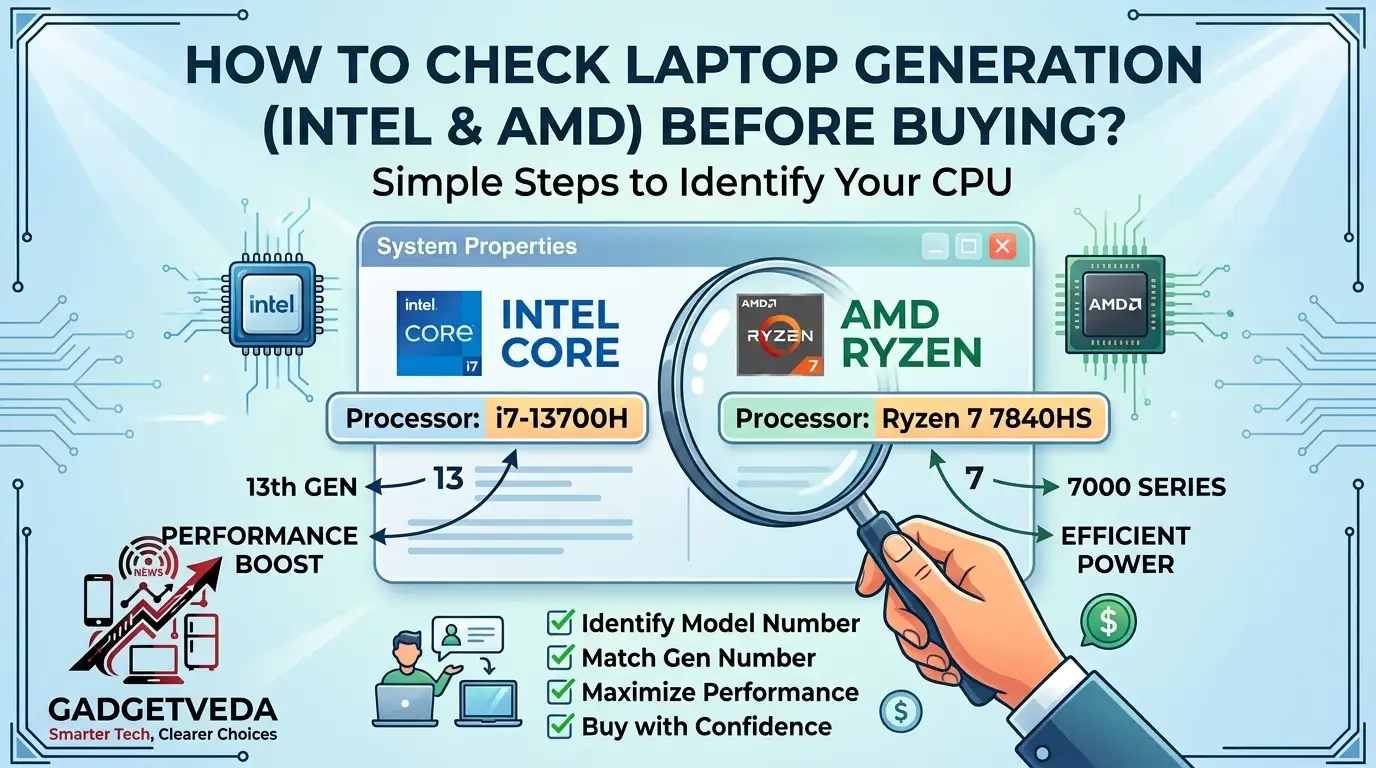
The fastest way to identify generation is to look at the exact processor model number, not just the family name like i5 or i7. On Intel processors, the generation is indicated by the first one or two digits immediately following the i3, i5, i7, or i9 label.
For example, in an Intel Core i5-1235U, the number “12” right after the hyphen indicates a 12th generation processor. In an Intel Core i7-8550U, the number “8” indicates 8th generation. This distinction is critical because Intel switched from a two-digit prefix to a four-digit prefix around the 10th generation, which is exactly where a lot of buyer confusion begins.
Where to find this on Windows:
➤ Press Windows + R, type msinfo32, and hit Enter
➤ Look for “Processor” in the System Summary window
➤ Note the number immediately following the i3/i5/i7/i9 label — the first one or two digits reveal the generation
Alternative method using Settings:
➤ Click Start, then Settings
➤ Go to System, then About
➤ Check the “Device specifications” section for the exact processor name.
Step 2: Use Task Manager for a Quicker Check
If you already own the laptop and just want a fast visual confirmation, Task Manager gives you the processor name without digging through system menus.
Steps:
➤ Right-click the Taskbar and select Task Manager
➤ Click on the Performance tab
➤ Select CPU from the left panel — the full processor name and generation number are displayed at the top.
This method works identically for checking AMD processors as well, making it a reliable go-to option regardless of brand.
Step 3: Understand Intel’s Naming Convention Fully
Intel’s naming structure follows a consistent pattern once you know what each section represents: brand (Core), tier (i3/i5/i7/i9), generation number, and SKU digits, followed by a suffix letter indicating power class.
Take Intel Core i7-1360P as an example:
➤ Core i7 — performance tier
➤ 13 — 13th generation
➤ 60 — SKU number, indicating relative performance within that generation
➤ P — suffix indicating a power-efficient performance chip
Suffix letters matter more than most buyers realize. A “U” suffix typically means an ultra-low-power chip built for battery life over raw performance, while an “H” or “HX” suffix indicates a high-performance chip designed for demanding tasks or gaming. Checking both the generation number and the suffix together gives you a much clearer performance picture than the generation alone.
Also, Explore Our Best Laptop Guides by Budget
Now that you know how to verify laptop generation, use our curated budget-wise guides to shortlist the right model — built for students and working professionals:
👉 Best Laptops Under ₹25,000 — Entry-level picks for students and basic daily use
👉 Best Laptops Under ₹35,000 — Balanced performance and battery life for regular coursework and office tasks
👉 Best Laptops Under ₹40,000 — Stronger multitasking capability for professionals and heavier student workloads
👉 Best Laptops Under ₹45,000 — Reliable mid-range picks with newer generation processors
👉 Best Laptops Under ₹50,000 — Well-rounded options for professionals needing consistent daily performance
👉 Best Laptops Under ₹55,000 — Premium mid-range laptops with the latest generation chips and better build quality
Step 4: Understand AMD’s Processor Naming Convention
The AMD processor naming convention follows a different but equally learnable structure. Once you understand how AMD numbers its Ryzen chips, spotting the generation becomes just as easy as with Intel.
Take a Ryzen 5 7530U as an example:
➤ Ryzen 5 — performance segment (Ryzen 3 is entry-level, Ryzen 5 is mid-range, Ryzen 7 and Ryzen 9 are higher-end)
➤ 7 — indicates the series, which roughly corresponds to release generation
➤ 530 — model differentiator within that series, indicating relative performance
➤ U — suffix indicating ultra-low-power design for battery efficiency
Unlike Intel, AMD’s series number does not always perfectly align with the underlying architecture. For instance, Ryzen 7000 series chips are built on the Zen 4 architecture, but the series number itself is what most buyers should use as their quick generation reference point. A higher series number reliably indicates a newer generation with meaningful performance and efficiency gains over predecessors.
Step 5: Check the Processor on the Manufacturer’s Website
If you’re unsure after checking the model number, both Intel and AMD maintain official processor databases where you can search the exact model name to confirm specifications and generation.
For Intel processors, search the exact model number on Intel’s official product specifications page. For AMD processors, the same applies on AMD’s official site. This step is particularly useful when buying a laptop in person, since you can pull up the specification page on your phone before finalizing the purchase.
Step 6: Compare Intel 12th Gen vs 13th Gen Before Deciding
This comparison comes up frequently because both generations are still commonly available in the Indian market, often at overlapping price points. Understanding Intel 12th gen vs 13th gen differences helps you decide whether paying extra for the newer chip is actually worth it for your use case.
13th generation Intel processors generally offer improved multi-core performance and slightly better power efficiency compared to their 12th generation counterparts, largely due to refined manufacturing and higher boost clocks on comparable SKUs. However, the real-world difference for everyday tasks like browsing, office work, and light multitasking is often modest rather than dramatic.
Where the difference becomes more noticeable is in demanding tasks — video editing, heavier multitasking, or gaming — where 13th generation chips tend to sustain performance better under load. If your budget allows and your usage involves these heavier tasks, the 13th generation is the safer long-term choice. If your usage is mostly browsing, documents, and streaming, a well-priced 12th generation laptop remains a perfectly capable and often more affordable option.
Explore Our Best Gaming Laptop Guides by Budget
If gaming performance is your priority, generation checks matter even more. Browse our gaming laptop picks by budget:
👉 Best Gaming Laptops Under ₹60,000 — Entry gaming builds with capable current-generation processors
👉 Best Gaming Laptops Under ₹70,000 — Better GPU and CPU pairing for smoother mid-tier gaming
👉 Best Gaming Laptops Under ₹80,000 — Stronger thermal design and sustained performance for serious gaming sessions
👉 Best Gaming Laptops Under ₹90,000 — Higher refresh rate displays paired with newer generation chips
👉 Best Gaming Laptops Under ₹100,000 — Premium gaming builds with the latest generation processors and top-tier GPUs
Step 7: Watch Out for Old Generation Laptop Stock Being Sold as New
This is where the practical value of knowing how to check laptop generation really shows up. It’s not uncommon in physical retail, and occasionally in online listings, for an old generation laptop — sometimes several generations behind current models — to be sold at a price positioned close to newer alternatives, with sales staff either unaware of or deliberately vague about the actual generation.
Red flags to watch for:
➤ The listing or salesperson mentions only “i5 processor” without specifying the generation number
➤ The price seems unusually attractive compared to similarly specced newer-generation laptops
➤ The laptop model itself has been in the market for several years, even if being sold as “new stock”
Always cross-check the exact processor model number against the generation before finalizing a purchase, regardless of how convincing the sales pitch sounds. A five-minute check using the steps above can save you from years of reduced performance and poor resale value.
Step 8: Match Generation to Your Actual Use Case
Not every buyer needs the latest generation chip, and understanding your own usage pattern helps you avoid overspending unnecessarily.
➤ Basic use (browsing, documents, video calls): A well-maintained 10th or 11th generation Intel or equivalent AMD Ryzen 3000/4000 series laptop can still perform adequately
➤ Moderate multitasking (office work, multiple browser tabs, light editing): 11th or 12th generation Intel, or Ryzen 5000 series AMD, offers a comfortable balance
➤ Heavier workloads (gaming, video editing, coding with multiple environments): 12th generation or newer Intel, or Ryzen 6000/7000 series AMD, is the safer choice for sustained performance.
Matching generation to actual need, rather than chasing the newest number available, is often the smarter financial decision — especially for students and professionals working within a defined budget.
How to Check Laptop Generation [Quick Reference Checklist]
| Step | What to Check |
| 1 | Full processor model number, not just i5/i7 label |
| 2 | Generation digits immediately after the hyphen |
| 3 | Suffix letter (U, H, HX, P) for power class |
| 4 | Cross-verify on Intel or AMD’s official website |
| 5 | Compare price against genuinely equivalent current-generation models |
| 6 | Match generation to your actual daily usage, not just budget optics |
Conclusion
Learning how to check laptop generation takes only a few minutes, but it’s one of the most valuable habits you can build before any laptop purchase. Whether you’re comparing Intel 12th gen vs 13th gen options or trying to decode an AMD processor naming convention on a showroom floor, the steps in this guide give you everything needed to verify claims independently — without relying solely on what a salesperson tells you.
At GadgetVeda, our goal is to help you buy laptops that genuinely match your needs and budget, not just what’s easiest to sell. Use the checklist above at your next purchase, and pair it with our budget-wise laptop guides to make a confident, well-informed decision.




![10 Best Smart TVs Under ₹30,000 in India [November 2026]](https://gadgetveda.com/wp-content/uploads/2026/10/Best-Smart-TVs-Under-₹30000-in-India-150x150.webp)

![Inverter vs. Non-Inverter Washing Machines [Real Savings]](https://gadgetveda.com/wp-content/uploads/2026/10/Inverter-vs.-Non-Inverter-Washing-Machines-Real-Savings-150x150.webp)
![12 Best Washing Machines Under ₹10,000 in India [November 2026]](https://gadgetveda.com/wp-content/uploads/2026/06/Best-Washing-Machines-Under-₹10000-in-India-150x150.webp)

![10 Best Smart TVs Under ₹30,000 in India [November 2026]](https://gadgetveda.com/wp-content/uploads/2026/10/Best-Smart-TVs-Under-₹30000-in-India-300x167.webp)

![Inverter vs. Non-Inverter Washing Machines [Real Savings]](https://gadgetveda.com/wp-content/uploads/2026/10/Inverter-vs.-Non-Inverter-Washing-Machines-Real-Savings-300x200.webp)